

You finally have your new logo, and then the folder arrives from the graphic designer. Inside are files labeled PNG, JPG, SVG, PDF, AI, CMYK, RGB, light version, dark version, horizontal, stacked, icon only, and maybe a few names that make you wonder if you are supposed to understand graphic design overnight.
Logo file types can feel confusing if you don’t work with design files every day. The good news is that you do not need to know everything about every file format. You just need to know which logo file to use for the situation in front of you.
This guide breaks down the most common logo file formats so you can confidently send the right file to a printer, upload the best logo to your website, or use the correct version in a presentation, email signature, social media profile, or digital ad.
Why You Receive So Many Logo File Formats
A professional logo package is not supposed to be one single image. Your logo needs to work across different platforms, sizes, backgrounds, and materials.
The logo file you use for a website is not always the same file you would send for a business card. The logo you place on a white background may not work on a dark blue banner. The file your printer wants for large scale printing may not be the file you can easily drop into a Word document.
That is why final logo files are usually delivered in multiple file formats, color modes, and layout variations.
A well-organized logo package may include:
- Vector files for professional printing, editing, and scaling
- Raster files for everyday digital use
- RGB files for websites, social media, email, and screens
- CMYK files for printed materials
- Light logo versions for dark backgrounds
- Dark logo versions for white or light backgrounds
- Transparent background options for flexible placement
Once you understand the purpose of each file type, the folder becomes much less intimidating.
The Quick Answer For Which Logo File To Use
For most business owners, the file you will use most often is the PNG file.
A PNG, which stands for Portable Network Graphics, is widely supported, easy to upload, and usually supports transparent backgrounds. That makes it useful for websites, email signatures, presentations, social media graphics, and other digital files.
Here is a glance at the most common logo file formats you may see and when to use them:
- Use a PNG when you need a digital logo with a transparent background.
- Use a JPG when you need a simple image file and transparency does not matter.
- Use an SVG when your website or developer needs a logo that stays crisp at any size.
- Use a PDF when sending your logo to a printer, vendor, or partner who needs a high-quality file.
- Use an AI (Adobe Illustrator) file when a designer or professional vendor needs the original design file.
- Use CMYK for print.
- Use RGB for digital.
That alone will solve most logo file confusion.
Vector Files Vs. Raster Files
Most logo file formats fall into two major categories: vector files and raster files.
Understanding the difference between vector and raster formats makes it much easier to choose the right logo file format.
Vector Files
Vector files are built using mathematical equations instead of fixed pixels. That means the logo can scale up or down without losing quality.
A vector logo can be used on a small business card, a large sign, a vehicle wrap, a t-shirt, or a tradeshow banner and still look crisp.
Common vector file formats include:
- AI
- SVG
- PDF, when saved with vector information
- EPS, if included in your logo package
Vector files are typically the best file format for professional printing, large scale printing, and any situation where the logo needs to stay sharp no matter the size.
Raster Files
Raster files are pixel based. That means they are made from tiny squares of color. Photos are usually raster graphics, and many common logo files used online are raster files.
Common raster file formats include:
- PNG
- JPG or JPEG
Raster files are easy to use and widely supported, but they can lose quality when enlarged. A small JPG logo may look fine on your screen, but if you try to stretch it across a large banner, it can become blurry or pixelated.
That does not make raster files bad. It just means they are best for digital use when they are already sized correctly.
PNG (Portable Network Graphics) Files
For everyday use, this is usually the right file to start with. PNG files are popular because they support transparent backgrounds, which helps your logo sit cleanly on websites, graphics, slides, and email signatures.
A transparent background means the logo does not have an awkward white or black box around it when placed over a color, pattern, or image.
Use PNG files for:
- Website headers
- Email signatures
- Social media graphics
- Presentations
- Digital ads
- Canva graphics
- Proposal templates
- Documents where you want the background to stay clean
PNG files are best for digital platforms and web use. They are usually not the best choice for professional printing unless your printer specifically asks for one.
JPG Files
JPG, also called JPEG, stands for Joint Photographic Experts Group.
A JPG file is one of the most common image file types. It is easy to open, easy to upload, and works across almost any operating system, website, or application.
The tradeoff is that JPG files do not support transparency. If your logo is saved as a JPG, it will usually appear on a solid background, often a white or black background.
JPG files can also lose quality when repeatedly saved, compressed, or enlarged.
Use JPG files for:
- Simple document placement
- Email previews
- Internal references
- Social media posts with a solid background
- Situations where transparency does not matter
Avoid using a JPG when the logo needs to sit on a colored or textured background without a border.
SVG Files
SVG stands for Scalable Vector Graphics.
An SVG file format is often ideal for websites because it is vector based, scalable, and usually lightweight. SVG files maintain quality when scaled, which helps your logo look clean across different devices and screen sizes.
If your logo needs to appear crisp on desktop, mobile, retina displays, and responsive web layouts, an SVG file can be the right logo file format.
Use SVG files for:
- Website logos
- Web icons
- Digital interfaces
- Developer handoff
- Situations where the logo needs to scale cleanly
Many business owners will not need to open an SVG file themselves. This is often a file you send to your web designer, website developer, or digital marketing team.
PDF Files
PDF stands for Portable Document Format.
A PDF file is helpful because it is easy to share and can preserve quality. Depending on how it was exported, a PDF can retain vector information, which makes it useful for vendors and print materials.
PDF files are often a safe option when a printer, signage company, apparel vendor, or promotional product vendor asks for a high-quality logo file but does not specify an exact format.
Use PDF files for:
- Professional printing
- Vendor requests
- Business cards
- Brochures
- Flyers
- Signage
- Proofing and review
- Sending a polished logo file that is easy to open
A PDF is also helpful when someone needs to view the logo without having design software.
AI Files
AI stands for Adobe Illustrator. Yes…before Artificial Intelligence became mainstream, AI was most commonly used for Adobe Illustrator.
An AI file is usually the original design file or master file created by the logo designer. This file is not meant for everyday use. Most people will not be able to open it unless they have Adobe Illustrator or compatible design software.
That does not mean you should ignore it. Your AI file is one of your most important brand assets.
Use AI files for:
- Future logo edits
- Professional design work
- Brand identity updates
- High-quality printing needs
- Vendor requests from experienced designers or printers
- Creating additional logo file formats later
Keep the AI file in your master folder and do not delete it. Even if you never open it yourself, a designer may need it later.
EPS Files
EPS stands for Encapsulated PostScript.
Not every logo package includes EPS files, but you may hear this format mentioned by printers, apparel companies, or sign vendors. EPS files are another vector format commonly used for professional printing applications.
Use EPS files for:
- Print vendors
- Embroidery
- Signage
- Large format graphics
- Older vendor systems that request EPS specifically
If your package does not include an EPS file, that does not automatically mean something is missing. Many vendors can work with AI, PDF, or SVG files instead. The best move is to ask the vendor which file format they prefer.
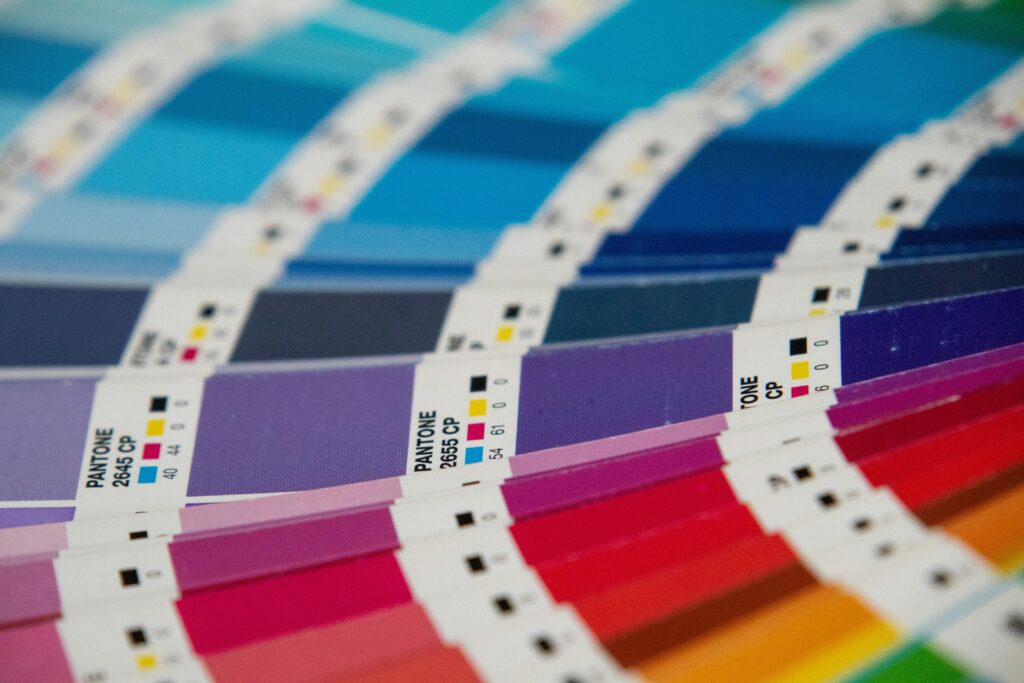
CMYK Vs RGB Logo Files
In addition to the file type, you may also see color mode labels like CMYK and RGB.
These matter because color works differently on screens than it does in print. This is why when you go to print something, the color may look totally different on screen than it does on paper. Having dedicated RGB and CMYK colors helps to keep your brand consistent on screen and in person.
RGB Files For Digital Use
RGB stands for red, green, and blue.
RGB files are made for anything viewed on a screen. This includes websites, social media, digital graphics, email signatures, online ads, digital presentations, and videos.
Use RGB files for:
- Websites
- Social media
- Email signatures
- Digital ads
- Presentations
- Online documents
- Screen-based applications
If the logo will live online, RGB is usually the right file.
CMYK Files For Print Materials
CMYK stands for cyan, magenta, yellow, and black.
CMYK files are made for printed materials. Printers use ink, not light, so CMYK gives them a more accurate starting point for production.
Use CMYK files for:
- Business cards
- Brochures
- Flyers
- T-shirts
- Packaging
- Posters
- Signage
- Printed sales materials
- Professional printing
If the logo will be physically printed, start with CMYK.
Light Logo Vs Dark Logo
A good logo package should include logo variations for different backgrounds.
A dark logo is usually designed for white, light, or neutral backgrounds. A light logo is usually designed for dark, bold, or colored backgrounds.
Use the dark logo on:
- White backgrounds
- Light gray backgrounds
- Pale colors
- Simple document backgrounds
Use the light logo on:
- Black backgrounds
- Dark blue, green, or red backgrounds
- Dark photography
- Bold color blocks
The goal is contrast. Your logo should be easy to read. If the logo blends into the background, switch to the other version.
How To Keep Your Logo Files Organized
Once you have your final logo files, keep them organized in a way that makes sense for future use.
A clear naming system can save a lot of time later, especially when a vendor asks for a specific file.
A simple master folder might look like this:
Logo Files
- RGB Digital
- CMYK Print
- Vector Files
- PNG Transparent
- JPG
- Light Logo
- Dark Logo
- Original Design File
You can also name files with clear details, such as:
- BrandName Logo Dark RGB.png
- BrandName Logo Light RGB.png
- BrandName Logo Dark CMYK.pdf
- BrandName Logo Master.ai
- BrandName Logo Website.svg
The goal is to make the right file easy to find without opening every file in the folder.
It is also smart to back up your logo files somewhere safe. Store them in a cloud folder, shared drive, or brand asset folder that your team can access when needed.
Which Logo File Should You Send To A Vendor
When sending your logo to a vendor, the best file depends on what they are creating.
For a printer, sign company, apparel company, or promotional product vendor, send a vector file if you have one. That may be an AI, PDF, SVG, or EPS file.
For a web designer or developer, send the SVG and PNG files.
For a social media manager or internal team member, send the PNG files.
For someone who just needs to preview the logo, send a JPG or PDF.
When in doubt, send the PDF and ask the vendor if they need another format. Most professional vendors will tell you exactly what they prefer.
The Most Common Logo File Mistakes To Avoid
A few logo file mistakes can make even a strong brand identity look inconsistent.
Avoid these common issues:
- Stretching a logo so it looks distorted
- Using a low-resolution raster file for large printing
- Placing a JPG with a white background on a colored design
- Using the light logo on a light background
- Using the dark logo on a dark background
- Deleting the AI or master file because you cannot open it
- Sending RGB files for professional printing when CMYK is available
- Uploading oversized files to a website when a smaller web-ready format would load faster
Your logo should feel consistent everywhere someone sees your brand. Using the right file helps protect that consistency.
Final Logo File Guide For Everyday Use
Here is the easiest way to remember your logo file types:
- PNG: Best everyday digital file, especially when you need a transparent background.
- JPG: Simple image file for digital use when transparency does not matter.
- SVG: Best for websites and scalable digital use.
- PDF: Best for sharing with vendors and many print needs.
- AI: Original design file for designers, printers, and future edits.
- EPS: Vector file commonly used for professional printing, if included.
- RGB: Best for screens and digital platforms.
- CMYK: Best for print materials.
- Light Logo: Best on dark backgrounds.
- Dark Logo: Best on light backgrounds.
A Good Logo Package Should Make Your Brand Easier To Use
Your logo files should not feel like a mystery folder you are afraid to touch. They should give you and your team the flexibility to use your brand correctly across websites, print materials, social media, ads, documents, signage, apparel, and other brand assets.
You do not need to be a designer to understand the basics. Start with the PNG for everyday digital use, use CMYK files for print, keep your vector files safe, and choose the light or dark logo based on the background.
And when you are not sure, ask before guessing. A quick file check can prevent a blurry print job, an awkward white box, or a logo that does not look quite right.
At JELY Marketing, we help businesses build brand identities and digital assets that are not only polished, but practical to use. From logo design and creative services to web design, SEO, Google Ads, and paid social, our goal is to make your marketing easier to understand, easier to manage, and easier to grow.
FAQ
What Logo File Type Should I Use Most Often?
Most business owners will use PNG files most often. They are easy to upload, widely supported, and usually support transparent backgrounds for digital use.
What Is The Best Logo File Format For A Website?
SVG is often the best file format for a website logo because it is scalable and stays crisp across different devices. PNG is also commonly used for websites, especially when transparency is needed.
What Is The Best Logo File Format For Printing?
Vector files are best for printing. This may include AI, PDF, EPS, or sometimes SVG files. For color mode, use CMYK files when printing.
Why Does My Logo Have A White Background?
Your logo likely has a white background because it is a JPG or another file that does not support transparency. Use a PNG with a transparent background when you want the logo to sit cleanly on another color or image.
Should I Keep The AI File Even If I Cannot Open It?
Yes. The AI file is usually the original design file or master file. A designer, printer, or vendor may need it in the future, so keep it saved in your master folder.